Printing and Mailing Services supports University of Iowa departments with much more than everyday printing. Our team can help plan, produce, finish, and distribute projects of nearly any size—from business cards and research posters to event signage, specialty graphics, personalized communications, and large-scale mailings.
Whether you know exactly what you need or are still exploring options, contact us early. We can help you select materials, prepare files, coordinate production, manage mailing requirements, and find an approach that fits your timeline and budget.
Not sure where to start?
Our team can help you select the right paper, finishing options, mailing services, and production methods before your project begins. We're here to answer questions and help ensure your project is a success.
All University of Iowa printing and copying must go through UI Printing Services. Please see the UI Operations Manual for more information about this policy.
Choose Your Service

Printing and Copying

Wide Format

Online Storefront

Mailing Services
Popular Projects

Office Essentials
Business cards, stationery, envelopes, notecards and other frequently ordered branded products.

Custom Stickers and Magnets
Print custom vinyl stickers and die-cut magnets in a variety of shapes, sizes, and finishes for promotions, branding, marketing and more.

Events and Marketing
Banners, signs, posters, flyers, programs, and promotional materials for campus events and recruiting.

Research & Academic Printing
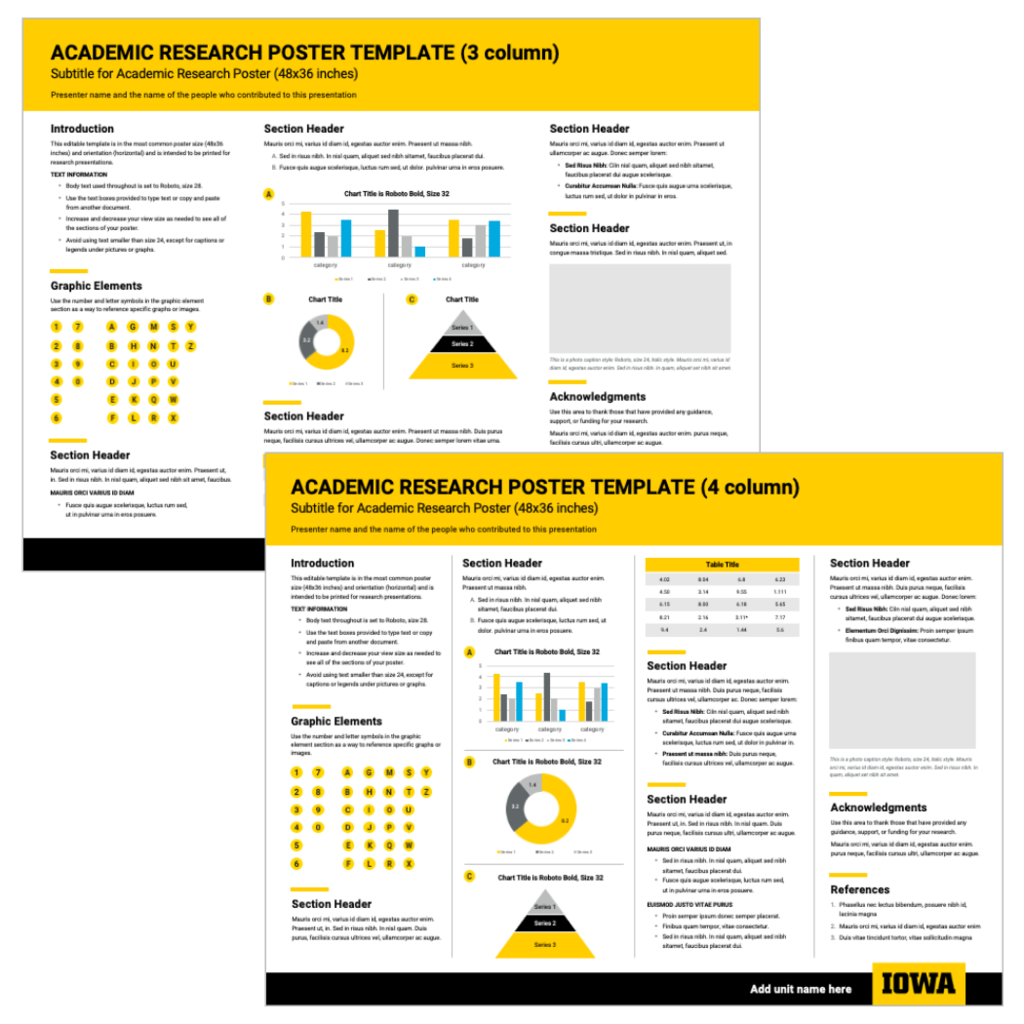
Conference posters, dissertations, presentation materials, and academic publications. Research Poster Template

Signs and Banners
Promote events and programs with banners, signs, window graphics, table displays, and large-format prints.

Need Help Planning a Project?
Not sure where to start? Our team can help you choose materials, finishing options, mailing services, and the best production method.
Frequently Asked Questions
Frequently Asked Questions
Do I need to use Printing Services for my print project?
All University of Iowa printing and copying must go through UI Printing Services. Please see the UI Operations Manual for more information about this policy.
How quickly can you have my order completed?
Every print job is different, and the specifications and quantity needed will both impact the turn around time for a project. We understand at times jobs need to be completed very quickly so we will work with you to meet your deadlines, but planning ahead can help ensure a smoother project overall. Please feel free to contact us directly with any questions related to your specific printing or mailing project.
How late are you open?
Our main hours of operation are 7:30 am to 4:00 pm Monday through Friday.
What format should I use for submitting a file to print?
Typically a PDF, using the "High Quality Print" setting for output is the best option. You can also send your files native in the format native to the application you created them in, e.g. Adobe InDesign.
See our Printing How Tos page for a guide on converting a Power Point file (or other Microsoft files) to a print ready PDF.
How Can I Reorder Storefront Products, e.g. Business Cards?
Login into the online storefront using the following link: https://storefront.printing.uiowa.edu/
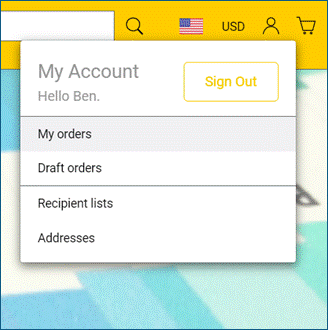
- Click on the person icon in the upper right corner and select “My Orders”
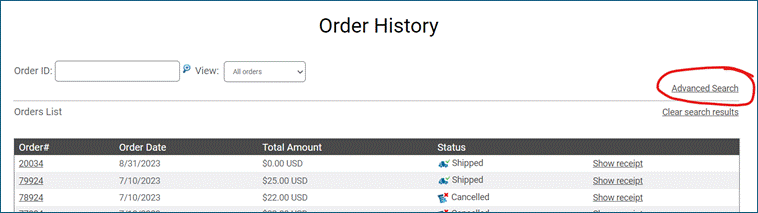
- Click on “Advanced Search” (or click on the order number if you know which one you need)
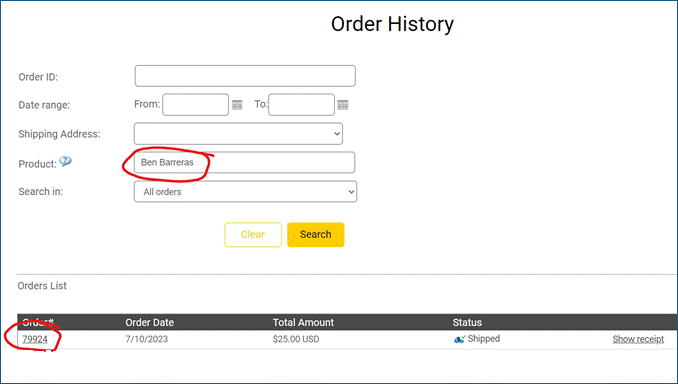
- Type the name of the person on the business card (can use a partial name), and click search, and then click on the order number
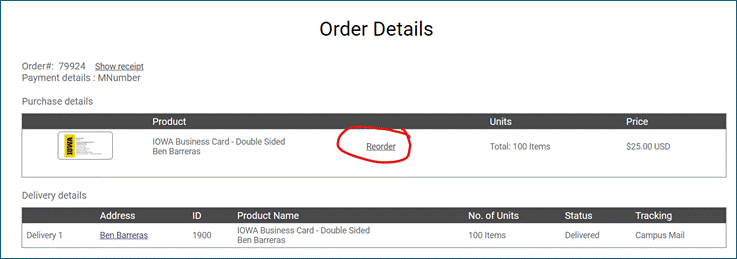
- Click on “Reorder” on the Order Details page
Screenshots with instructions below:
- Click on the person icon in the upper right corner and select “My Orders”
- Click on “Advanced Search” (or click on the order number if you know which one you need)
- Type the name of the person on the business card (can use a partial name), click search, and then click on the order number
- Click on “Reorder” on the Order Details page